# WebHooks
Setup **Webhooks** to receive notifications and alerts.
### Set up
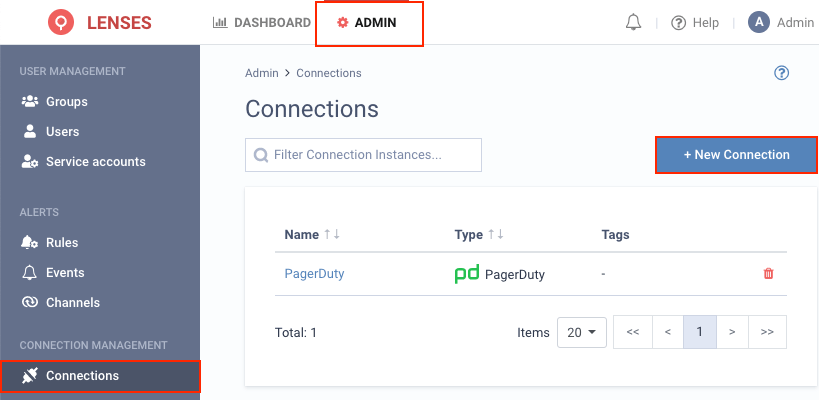
**1.** Visit **Admin → Connections** and click **New connection**
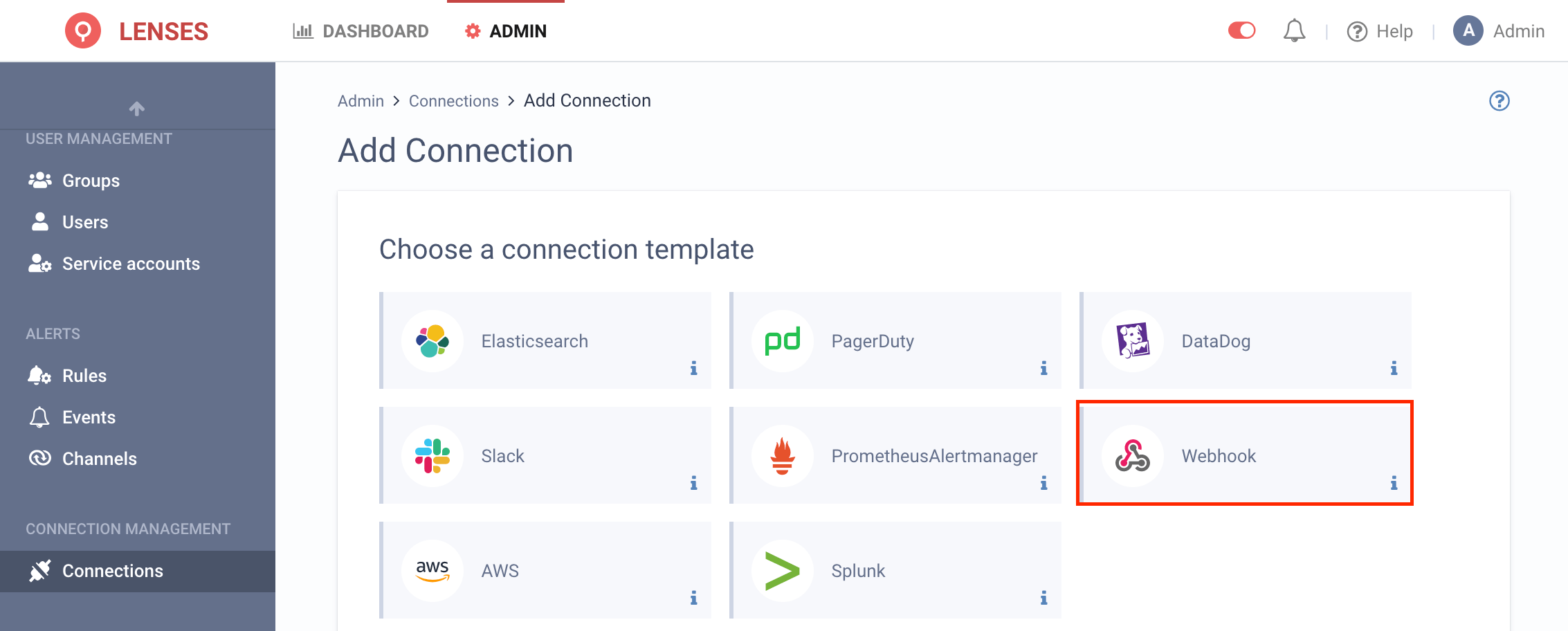
**2.** Select **Webhook**
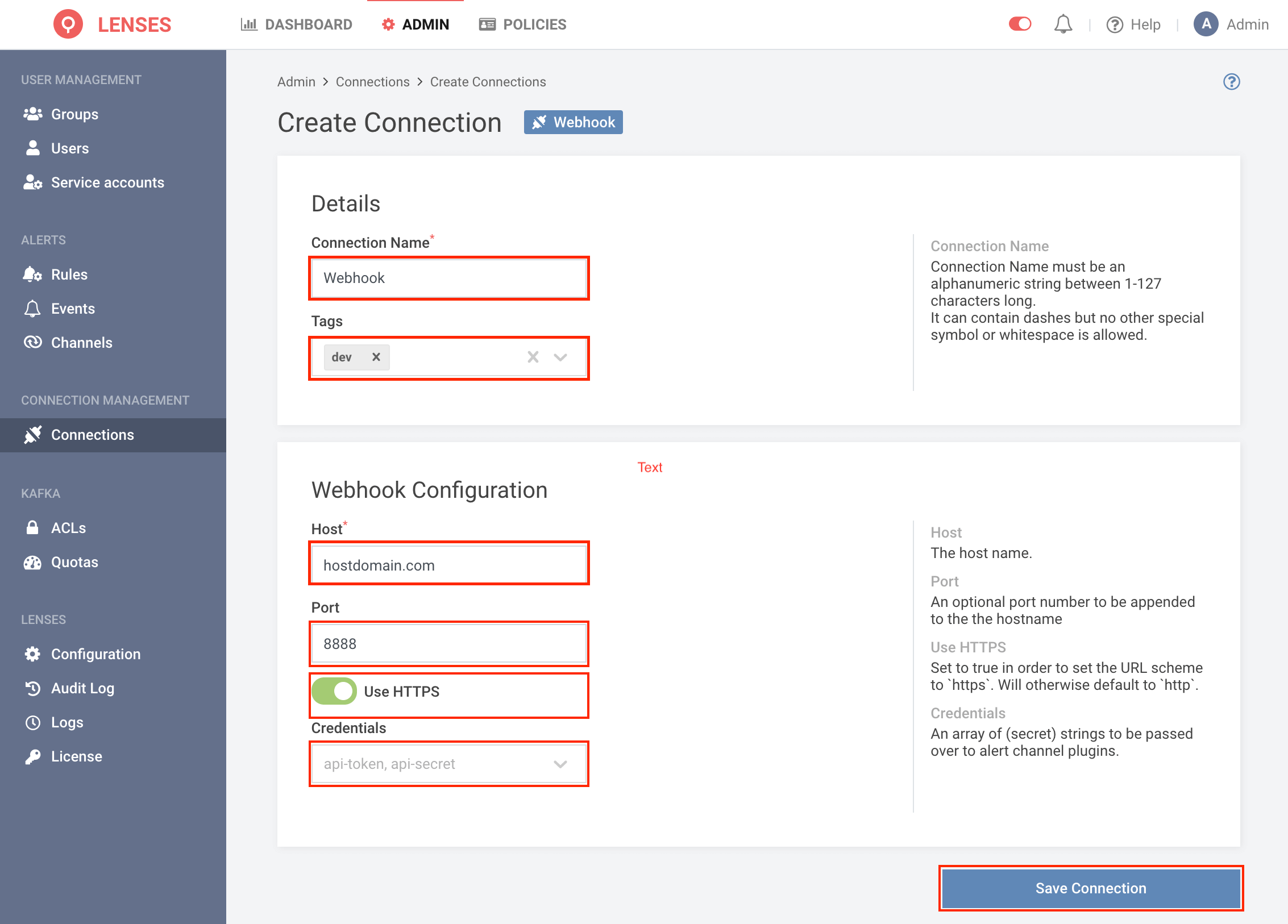
**3.** Provide a name and configuration
You can also optionally add tags (i.e. dev). Then add the Webhook configuration information.
### Add channel
Next, add one or multiple target Webhook channels.
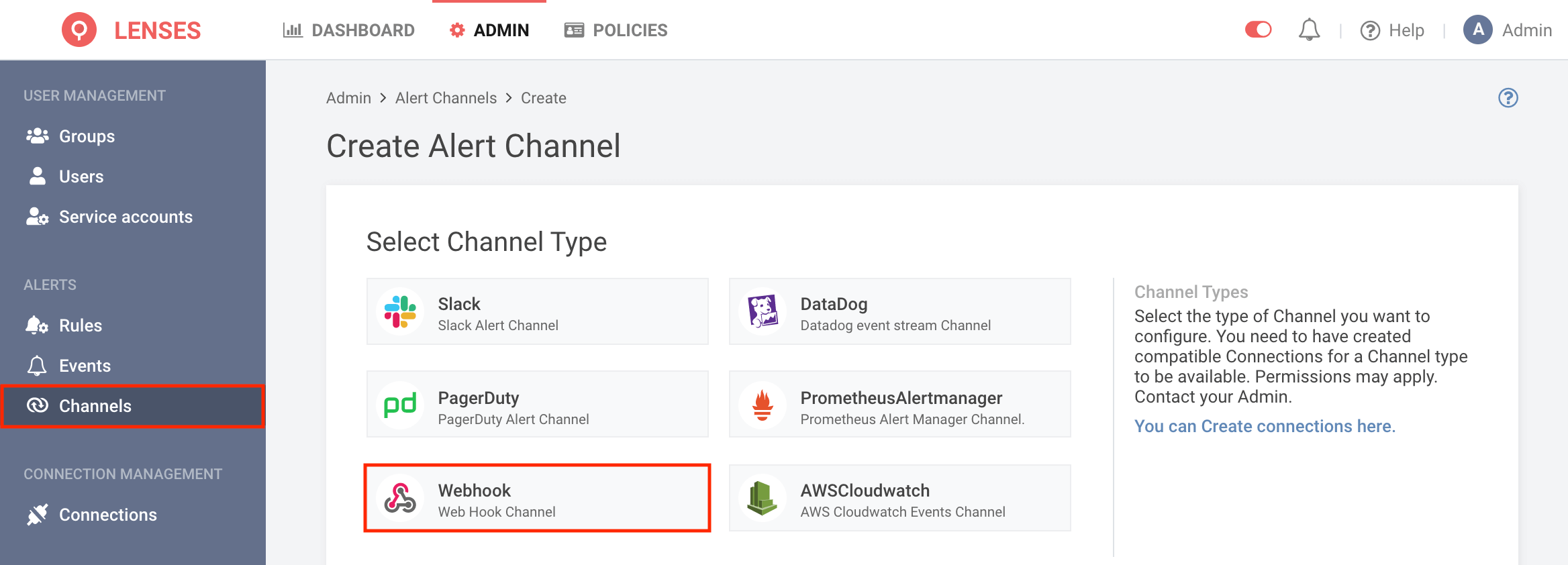
**1.** Visit **Admin → Channels** and click **Webhook**
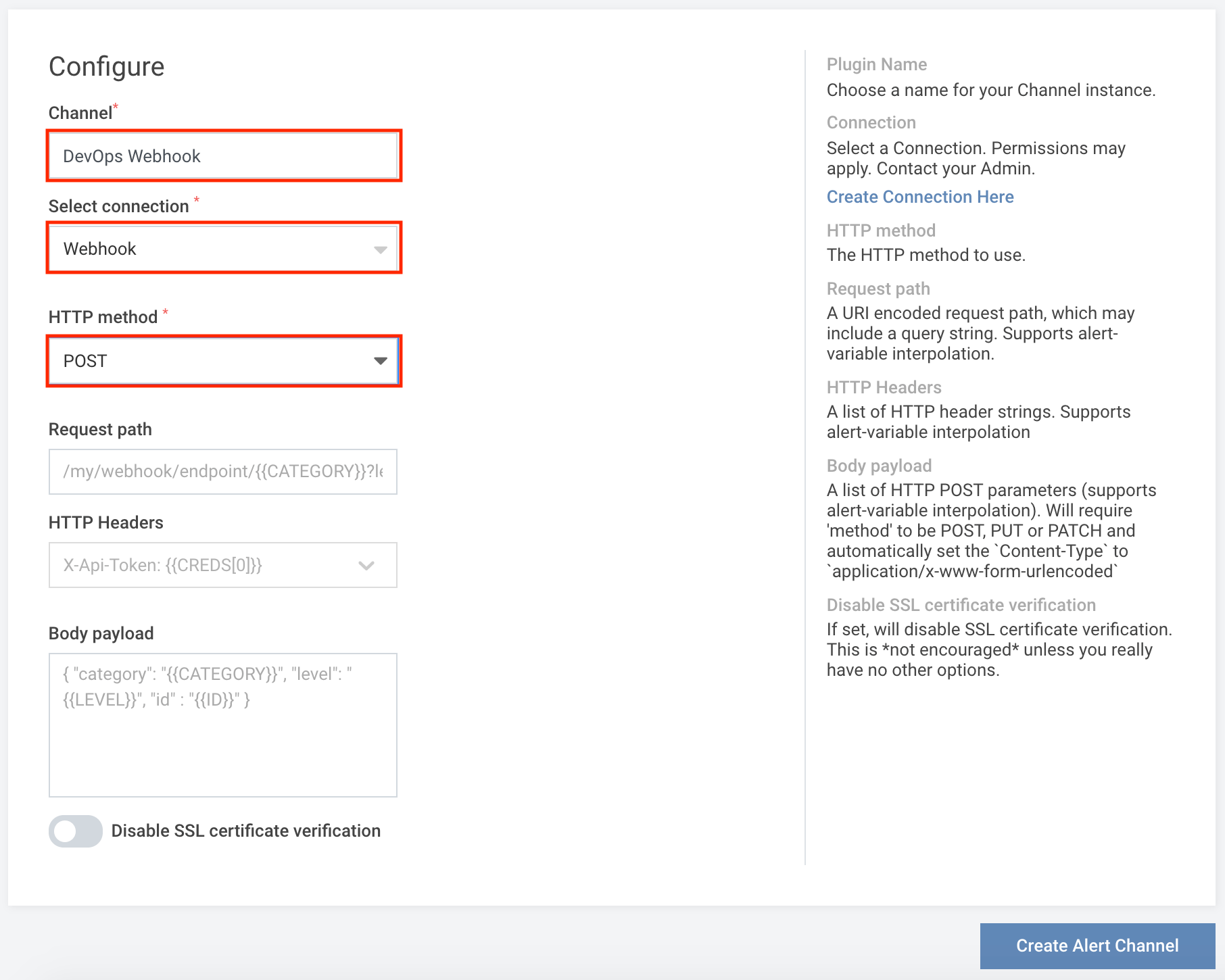
**2.** Setup the configuration options images
For example, the above will create the `DevOps Webhook`, that is, using the **Webhook** connection to `POST` information to the Webhook endpoint.
You can optionally add a specific request path for the `POST`, custom HTTP headers and body payload. Moreover, you can optionally disable SSL certificate verification.
### Template variables
In `Request path`, `HTTP Headers` and `Body payload` there is a possibility of using template variables, which will be translated to alert specific fields. To use template variables, you have to use this format: `{{VARIABLE}}`, i.e. `{{LEVEL}}`.
Supported template variables:
* LEVEL - alert level (`INFO`, `LOW`, `MEDIUM`, `HIGH`, `CRITICAL`).
* CATEGORY - alert category (`Infrastructure`, `Consumers`, `Kafka Connect`, `Topics`, `Producers`).
* INSTANCE - (broker url / topic name etc.).
* SUMMARY - alert summary - same content in the Alert Events tab.
* TIMESTAMP
* ID - alert global id (i.e. `1000` for BrokerStatus alert).
* CREDS - `CREDS[0]` etc. - variables specified in connections `Credentials` as a list of values separated by a comma.
### An example
If for example, you create a rule to send infrastructure notifications to Webhook, then the moment a Broker becomes offline, an `HTTP POST` will be made to the Webhook endpoint.