# PageDuty
## Incidents API
Set up a **PagerDuty** connection for Streaming Data Platform alerts and notifications.
Keep in mind\
This option is deprecated in Lenses version 4.1. Editing existing connections and channels for PagerDuty incident integration will still be available, but there is no option for creating new connections and channels for this kind of integration.
Instead of using the Incidents API, please use the PagerDuty Events API
### Set up
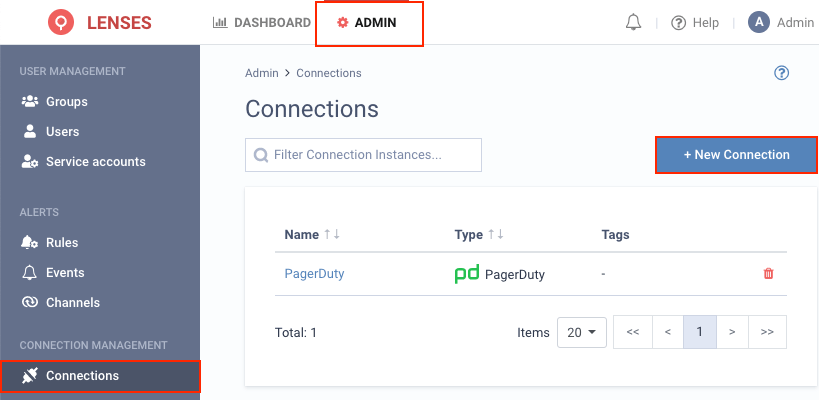
**1.** Visit **Admin → Connections** and click **New connection**
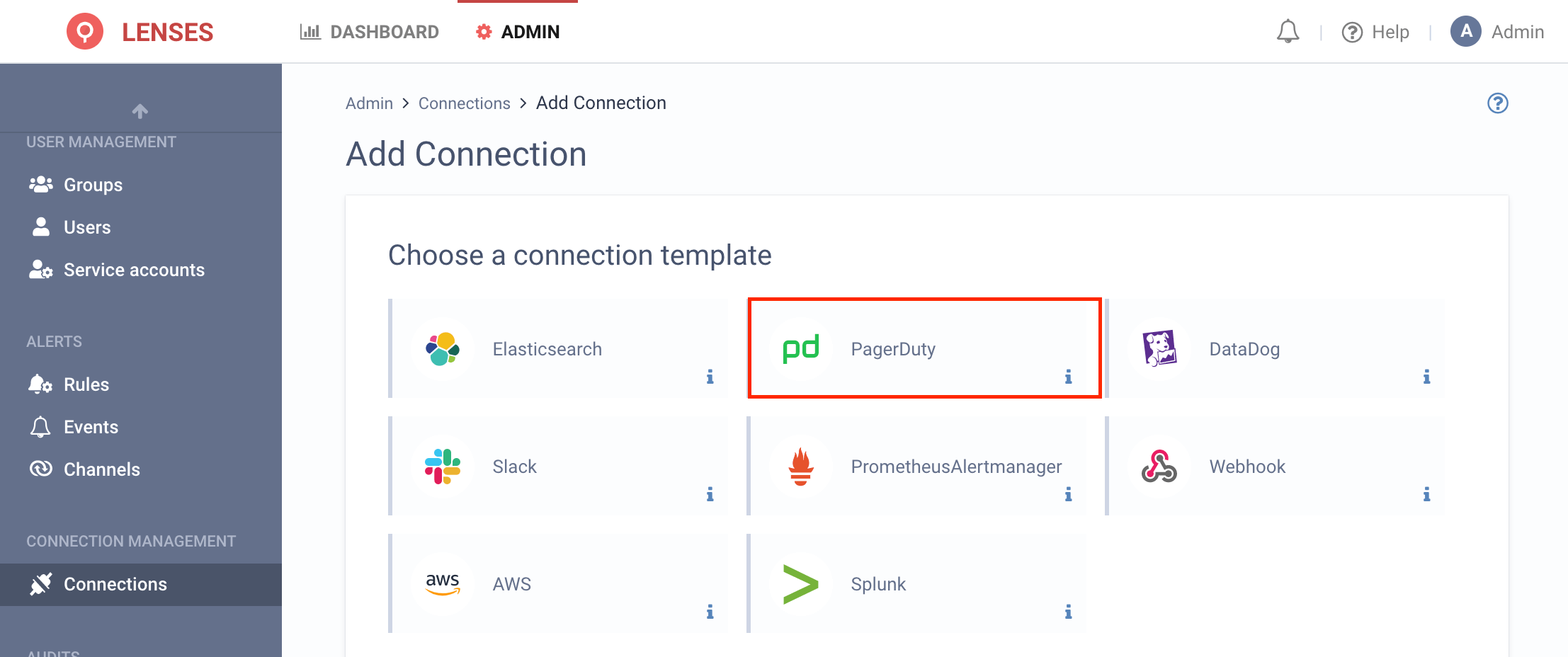
**2.** Select **PagerDuty**
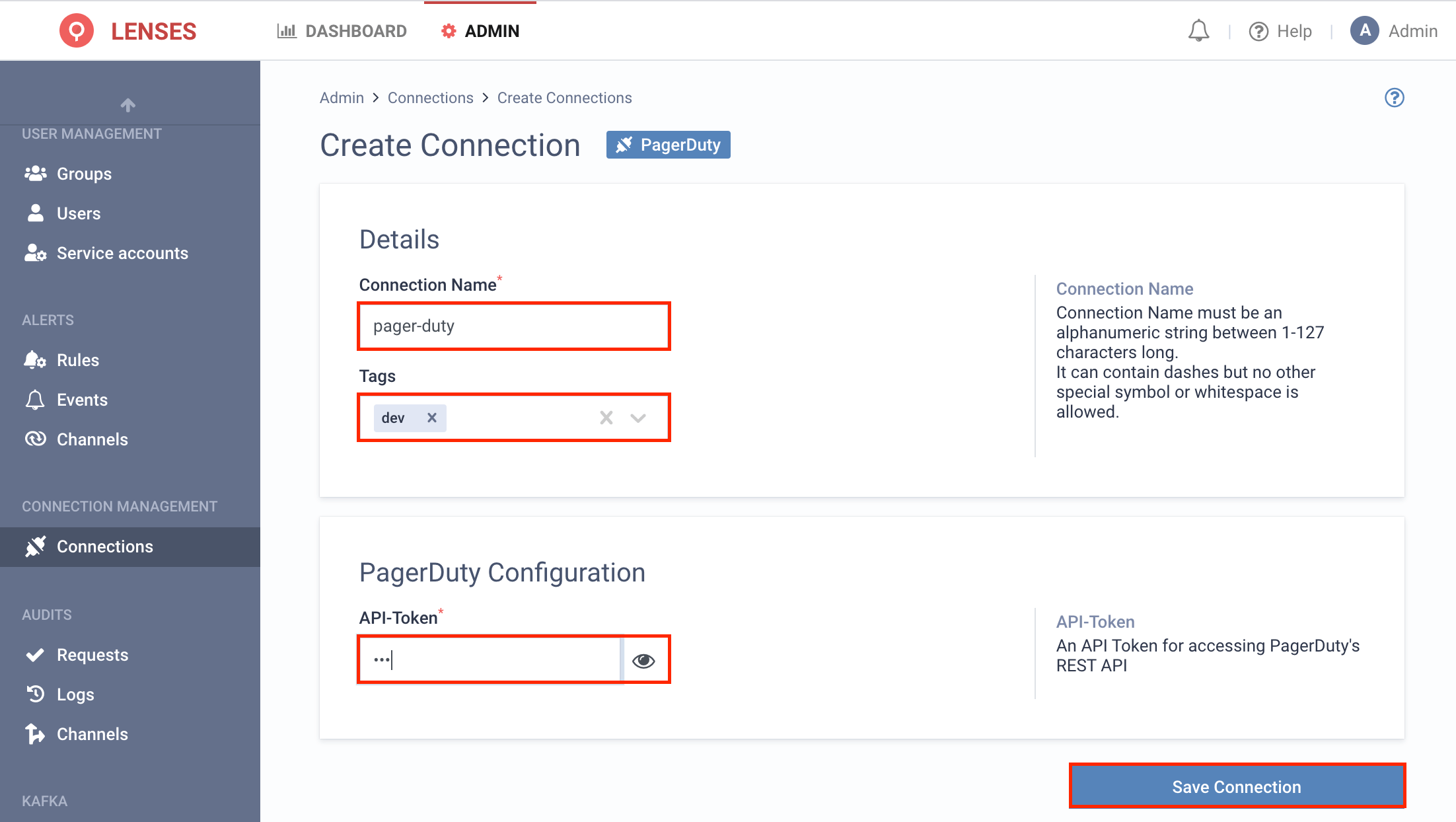
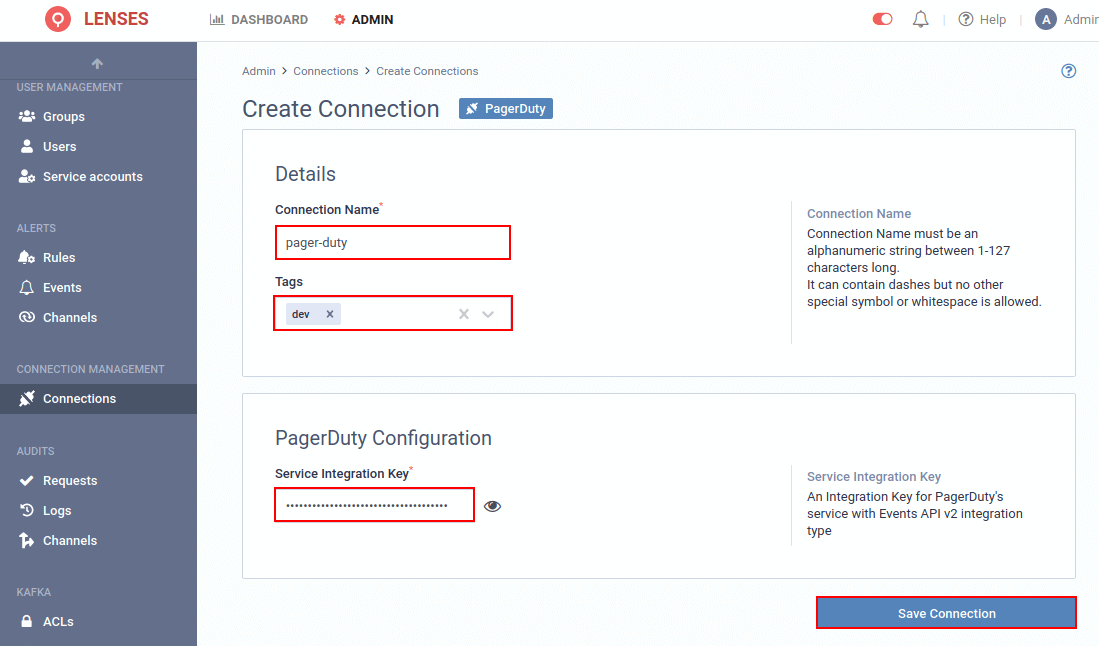
**3.** Provide a name and configuration
You can also optionally add tags (i.e., dev). Then add the PagerDuty API Key, which must be a General Access REST API Key. To obtain the API Token, log in to PagerDuty and navigate to `API Access Keys` page under `Configuration` menu, then create a new API Key.
### Add channel
Next, add one or multiple target PagerDuty channels.
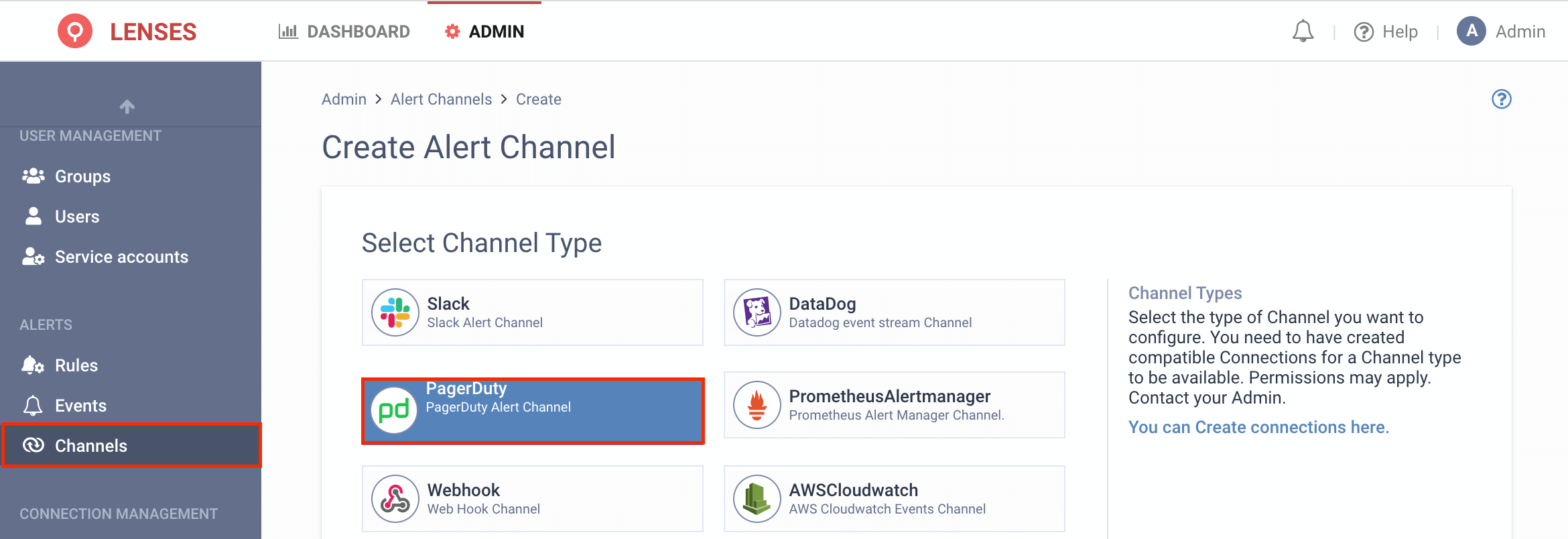
**1.** Visit **Admin → Channels** and click **PagerDuty**
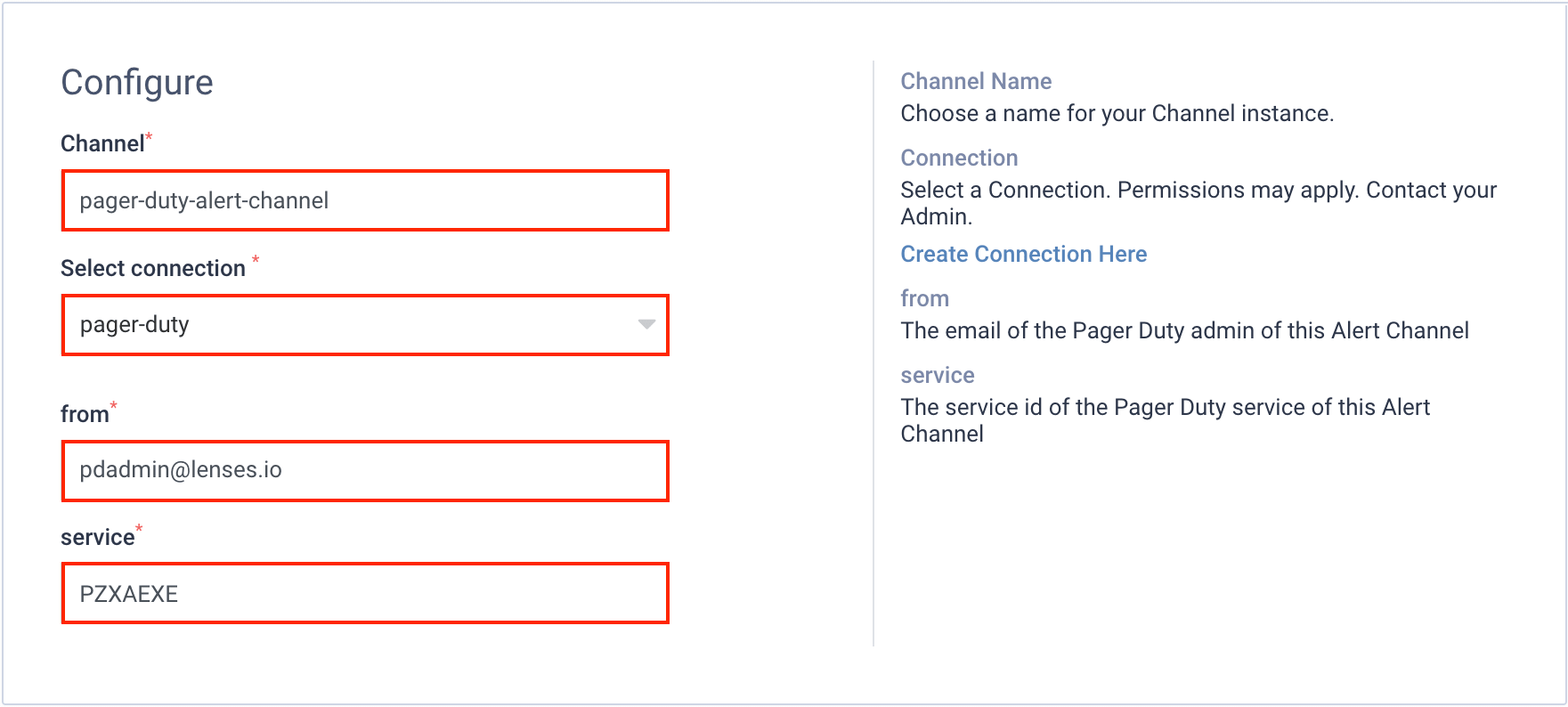
**2.** Setup the configuration options
First, go to the PagerDuty `Services` page and create a new service. When choosing `Integration Type`, pick `Don't use an integration`. Once saved, the service identifier can be grabbed from the browser URL on the service details page.
```bash
http://****.pagerduty.com/service-directory/PZXAEXE
```
For the above example, the service id is **PZXAEXE**
Use the above within Lenses to create a `pager-duty-channel`, that uses the **pager-duty** connection to send information to the `PZXAEXE` service id from the email address of your admin.
### An example
If, for example, you create a rule to send infrastructure notifications to PagerDuty, a specific alert will be sent to the specific PagerDuty connection when a Broker becomes offline.
## Events API
Set up a **PagerDuty** connection for Streaming Data Platform alerts and notifications using the PagerDuty Events API.
### Set up
**1.** Visit **Admin → Connections** and click **New connection**
**2.** Select **PagerDuty**
**3.** Provide a name and configuration
You can also optionally add tags (i.e., dev). Then add the PagerDuty Integration Key. To obtain the Integration Key, go to the PagerDuty `Services` page and create a new service. When choosing `Integration Type`, pick `Use our API directly` with `Events API v2`. Once saved, the service goes to `Services`, chooses created service, and goes to `Integrations` the tab.
### Add channel
Next, add one or multiple target PagerDuty channels.
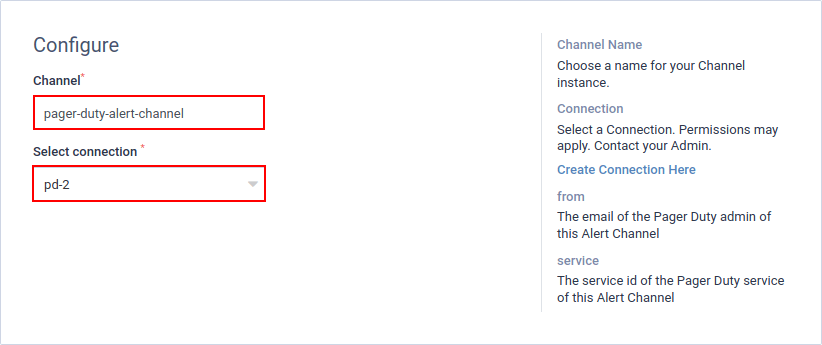
**1.** Visit **Admin → Channels** and click **PagerDuty**
**2.** Setup the configuration options
### An example
If, for example, you create a rule to send infrastructure notifications to PagerDuty, a specific alert will be sent to the specific PagerDuty connection when a Broker becomes offline.