# Connections
### Introduction
For connection to Kafka see the installation section.
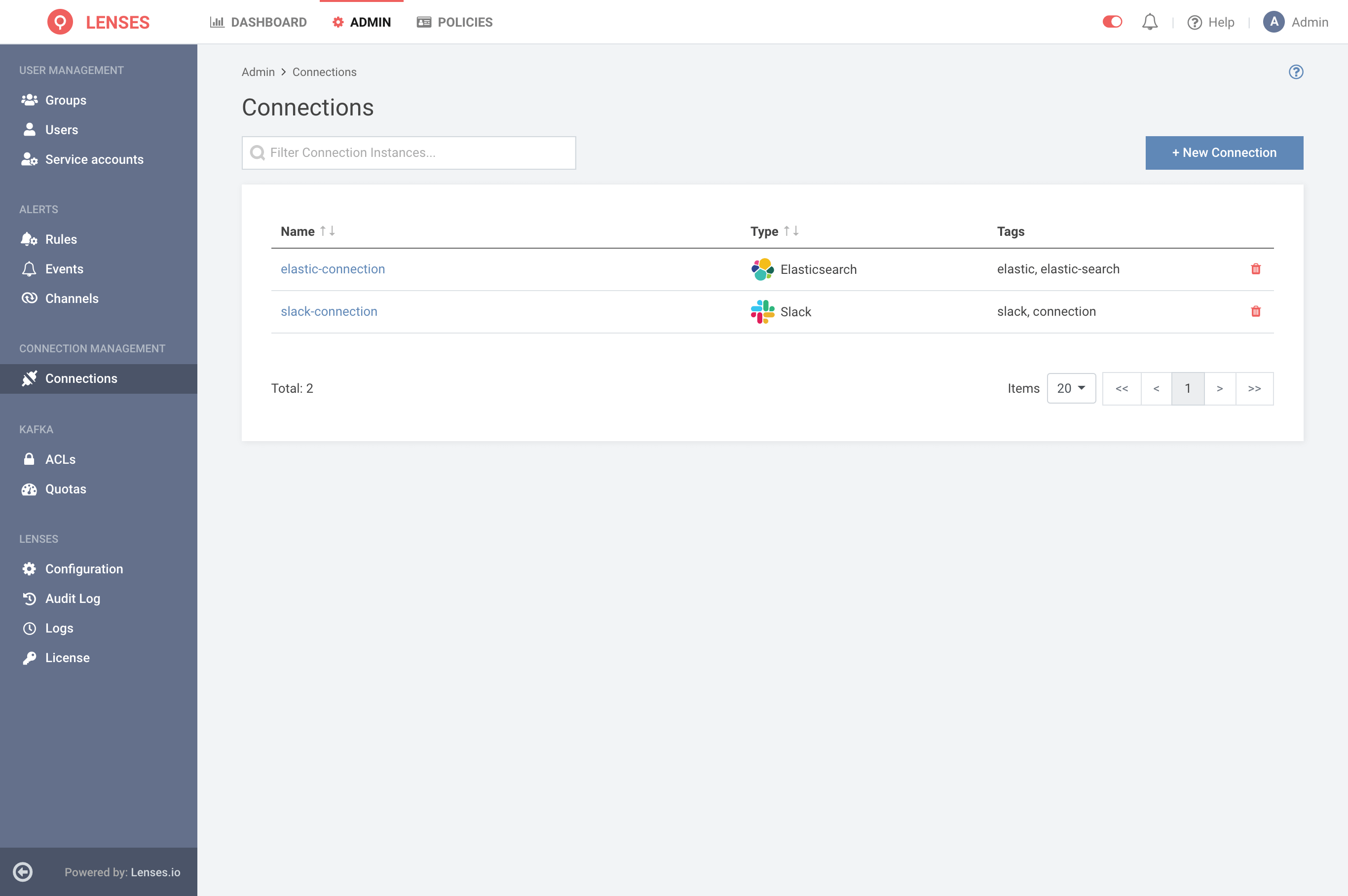
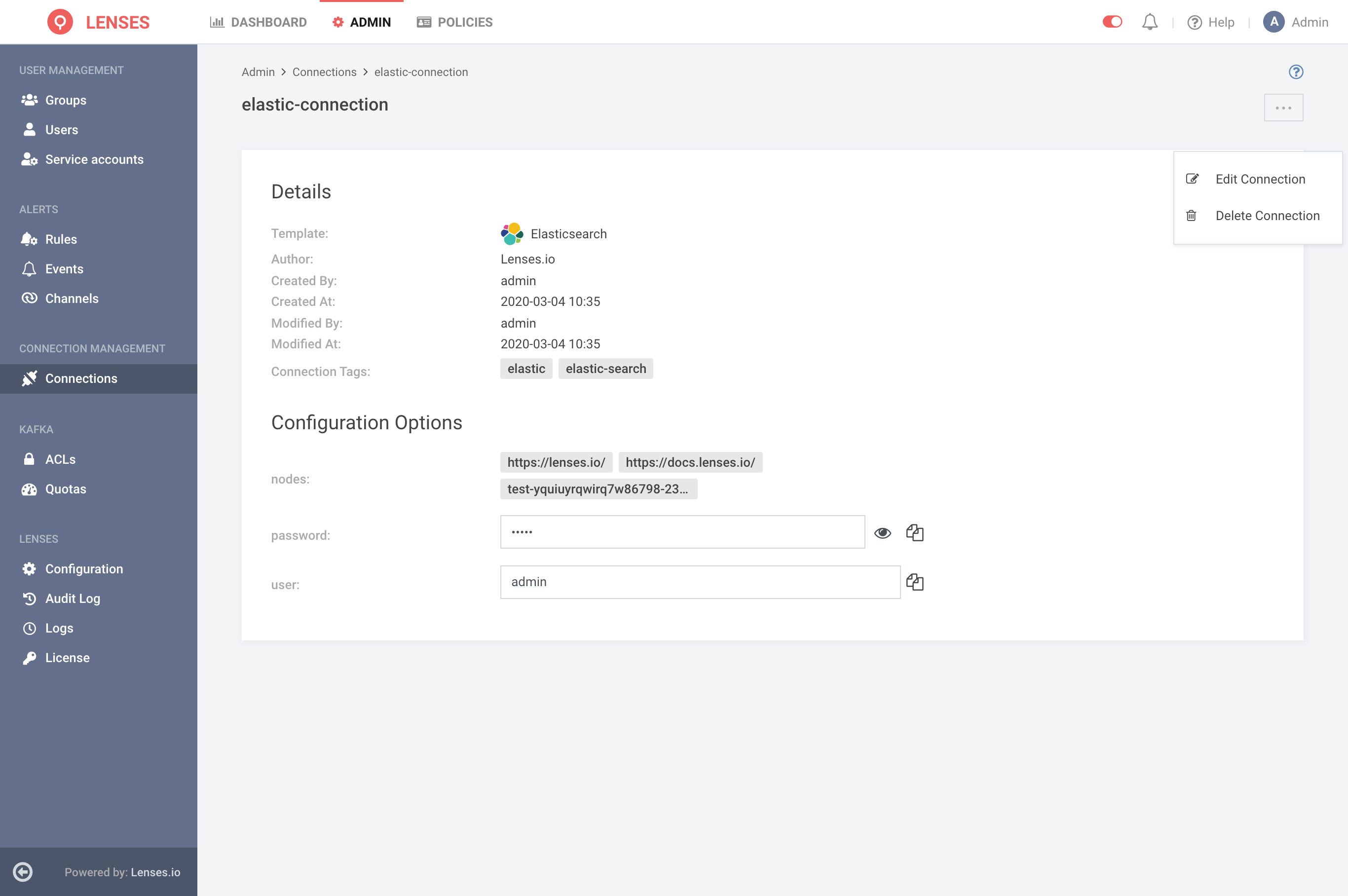
Lenses provide a connection manager to manage connection details for external services.
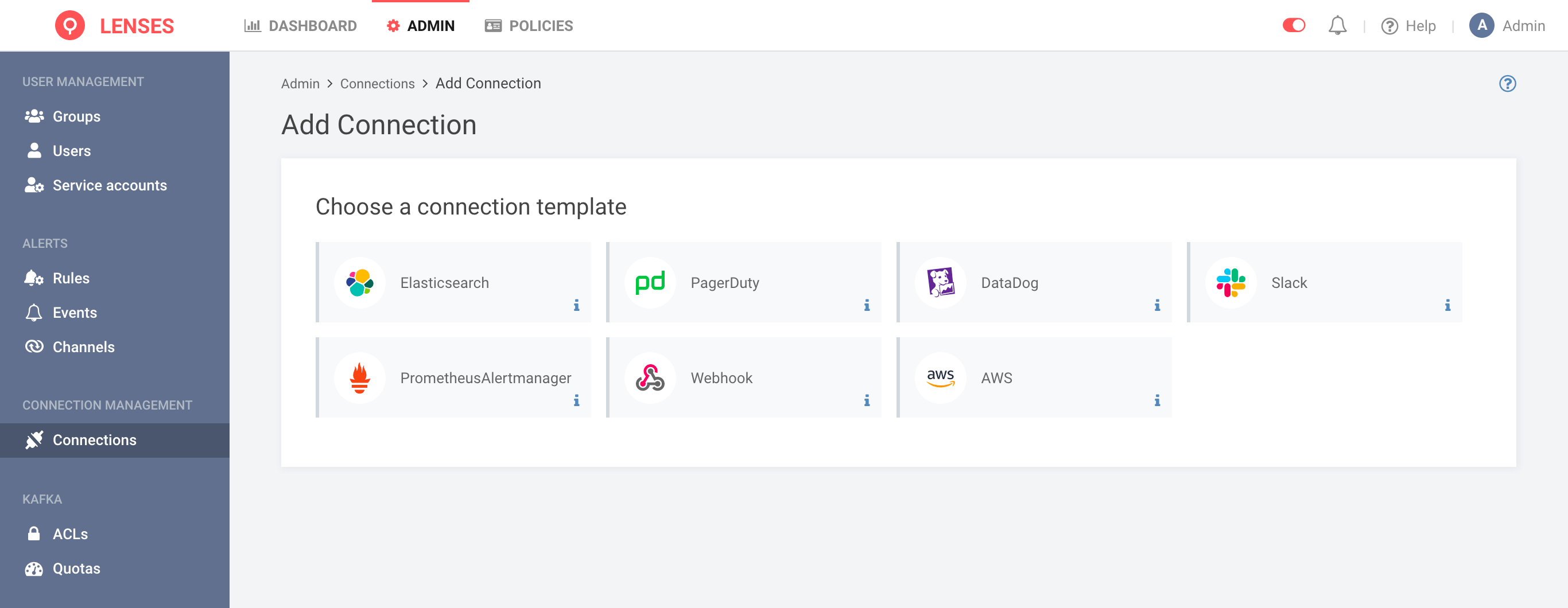
Lenses securely store the connection details. Connections connect external systems like Elasticsearch, Slack, PagerDuty, DataDog, Webhook, and Alert Manager.
### Required permission
| Permission | Type | Description |
| -------------------- | ----- | --------------------------------------- |
| Connections / Manage | Admin | Allows to add/remove/update connections |
Access Management & permissions
### Available Connections
#### Data Sources
| Connection Type | Overview |
| --------------- | --------------------------------------- |
| Elasticsearch |
Optional up to 10 connections
|
| PostgreSQL |
Optional up to 10 connections
|
#### Application Services
Connection Type
Overview
Kafka Connect
Optional N clusters
Schema Registry
Optional up to 1 connection
Zookeeper
Optional up to 1 connection
Kubernetes
Recommended for SQL Processors
#### Alert Channels
Send Alert events to the respective channels. Follow the integration guides to create a connection to the target system and configure the routing channels.
| Connection Type |
| --------------- |
| Slack |
| Alert Manager |
| Pager Duty |
| Cloudwatch |
| Datadog |
| Webhook |
#### Audit Log Channels
Send Audit Log events to the respective channels. Follow the integration guides to create a connection to the target system and configure the routing channels.
Connection Type
Splunk
Webhook
Kafka via Webhook
### User Permissions
or All Lenses Users should be able to see the listing and details page for the connections. Users require `Manage Connections` permission to **View Sensitive Data**, **Add**, **Edit**, and **Delete** a Connection.
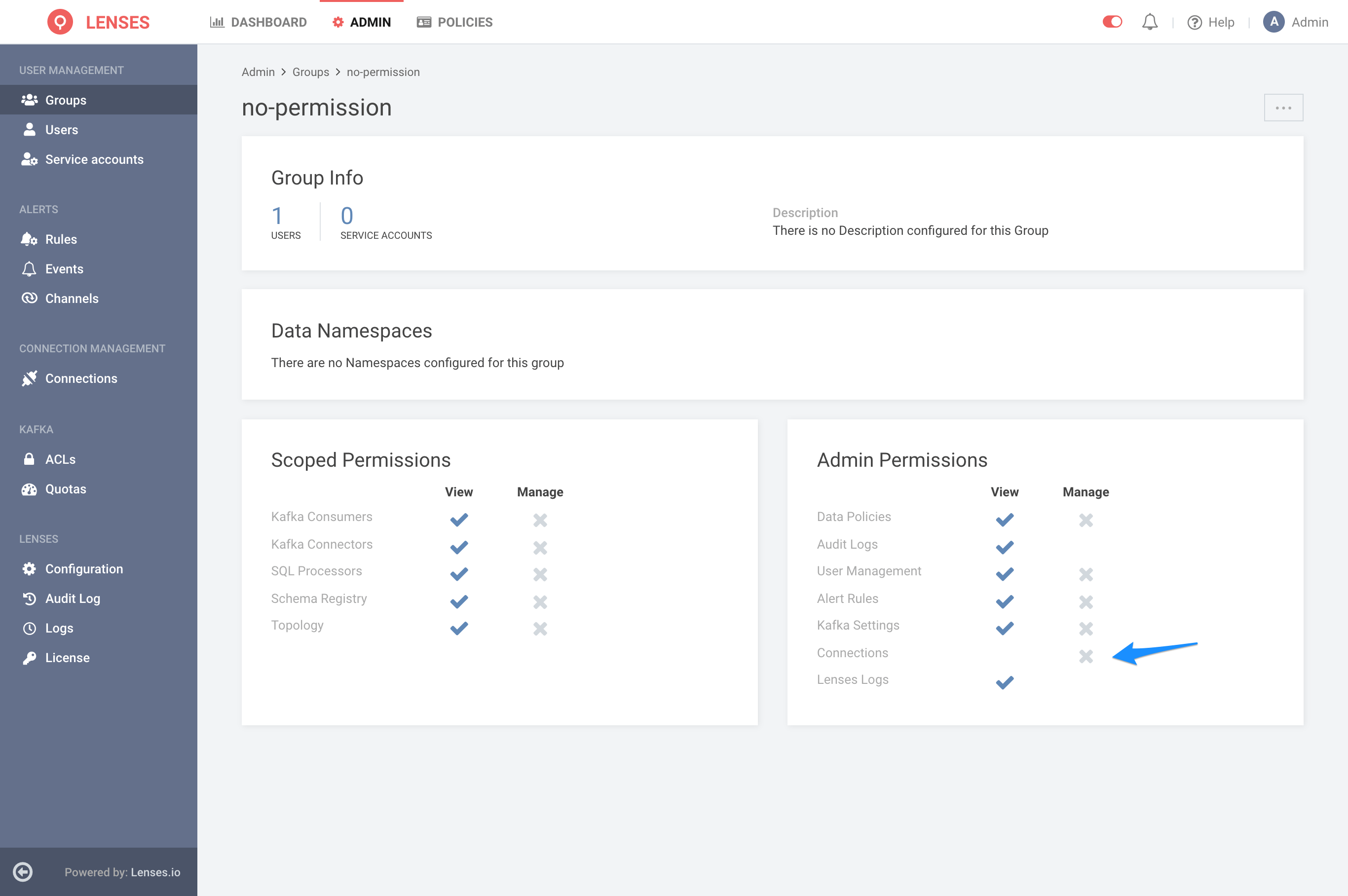
To create a user that has manage permissions, you need to go to the group create/edit page, and check the Manage Connections checkbox as bellow:
#### Manage connections
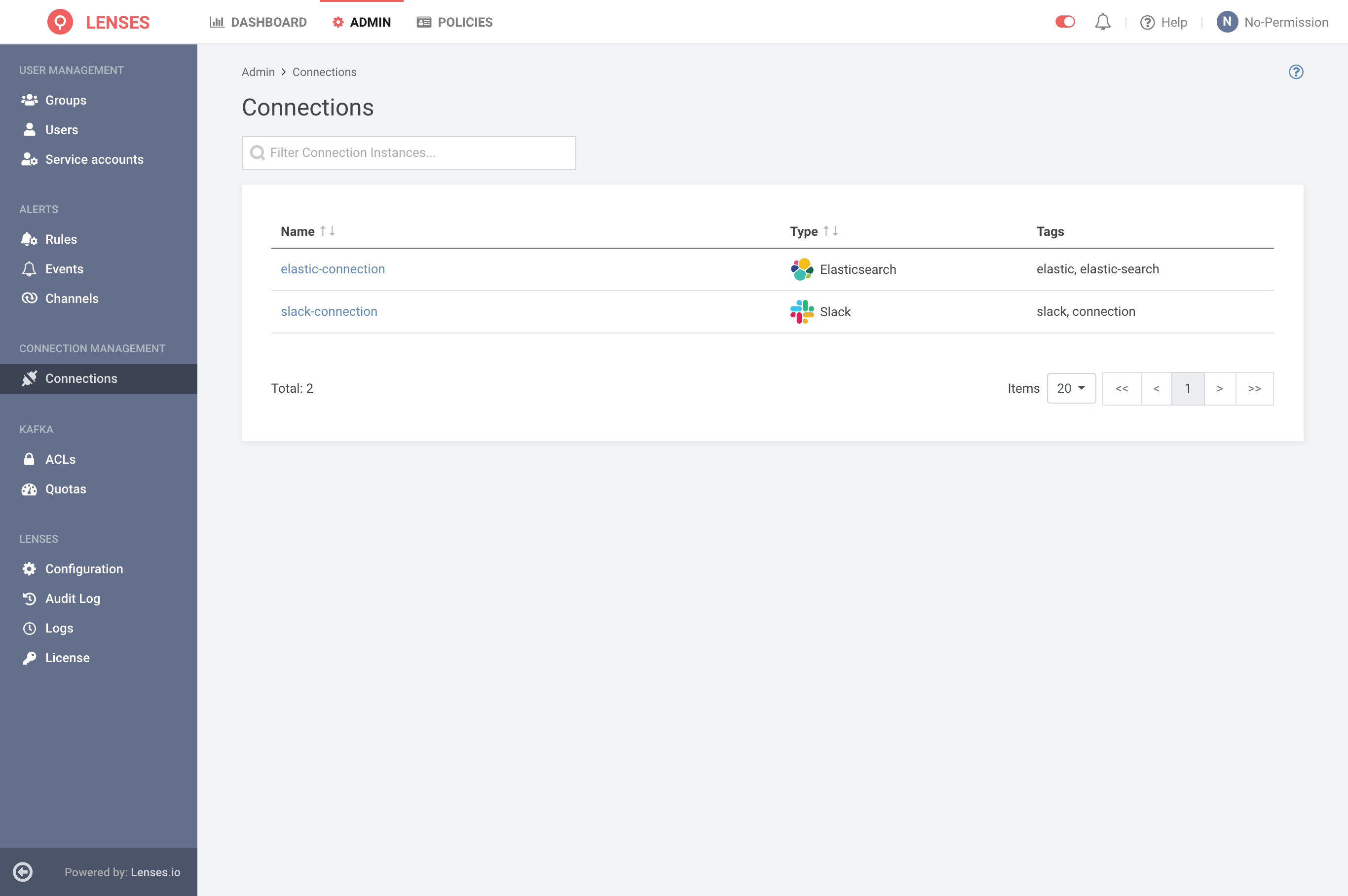
When a user has no **ManageConnections** permissions, they will be able to do the following:
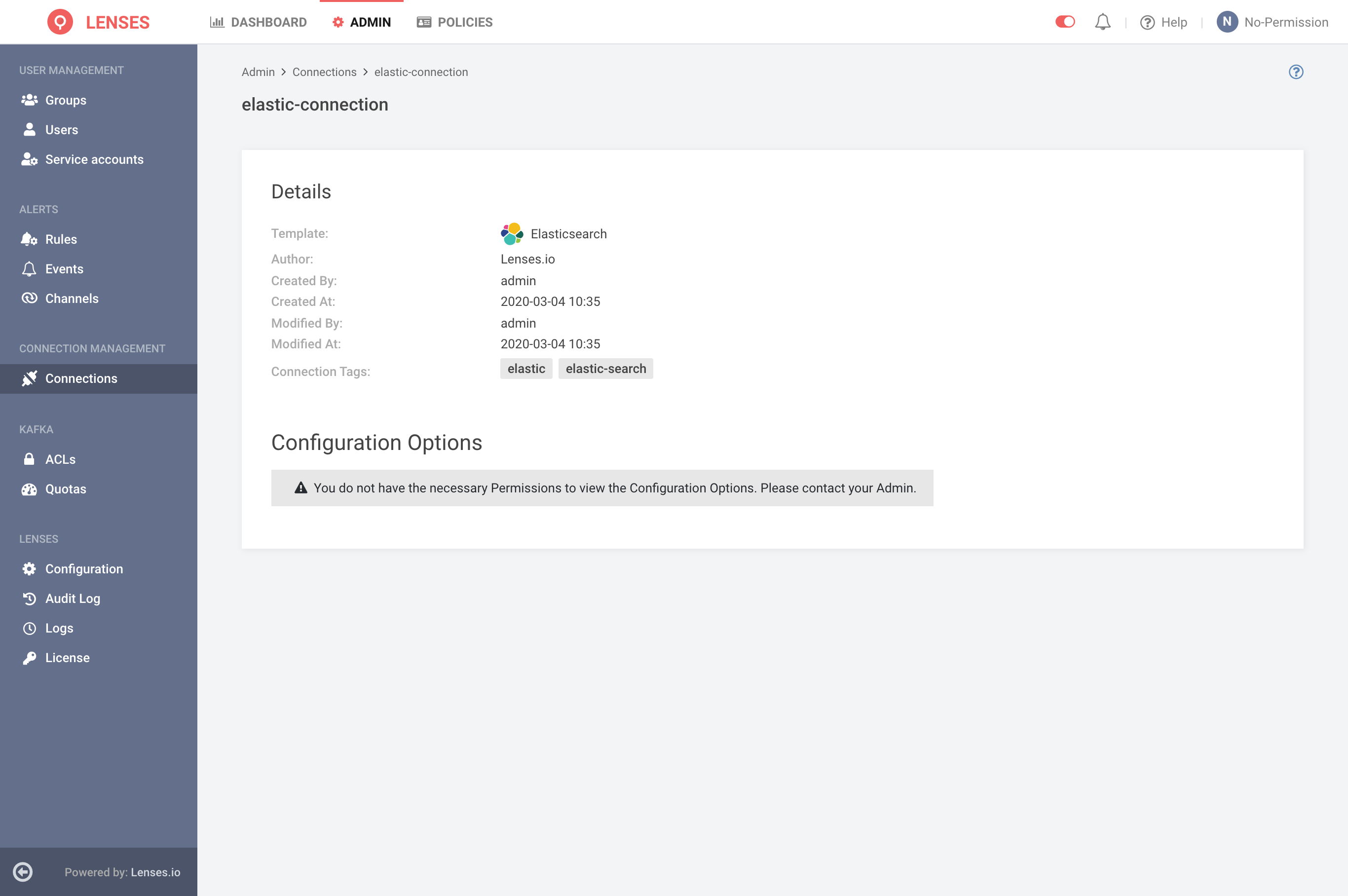
**View** the connection listing page and all the available Connections. **View** the connection details without any configuration details and no delete/edit actions
The user cannot **View Sensitive Data**, **Add**, **Edit**, or **Delete** for any connection.
When a user has **ManageConnections** Permissions, they can manage all Connections. That includes:
* View the Connection Listing Page and all the available Connections
* View the Connection Details and the configuration details
* Create a new Connection from all the available Templates
* Edit all available Connections
* Delete all available Connections
{% hint style="info" %}
Please Note that Permissions are applicable for all available Lenses clients. They include the UI, CLI, and regular HTTP Requests.
{% endhint %}
#### Identity providers & Auth services
You can configure 3rd party identity providers to Lenses. Lenses is not providing a user interface to configure these services, so follow the configuration settings.